Adding an Animation
How-To: Add Animations Using the Editor
Follow these steps to add an animation to an entity. If you prefer, is a step-by-step video.
-
Select the Entity
In the Inspector, make sure the entity you want to animate is selected. -
Add the Animation Component
- Click on Add Components in the Inspector.
- Choose Animation Component.

- Open the Asset Browser
- In the Asset Browser, click on Animations.
- Browse to the
.usdcanimation file you want to use.
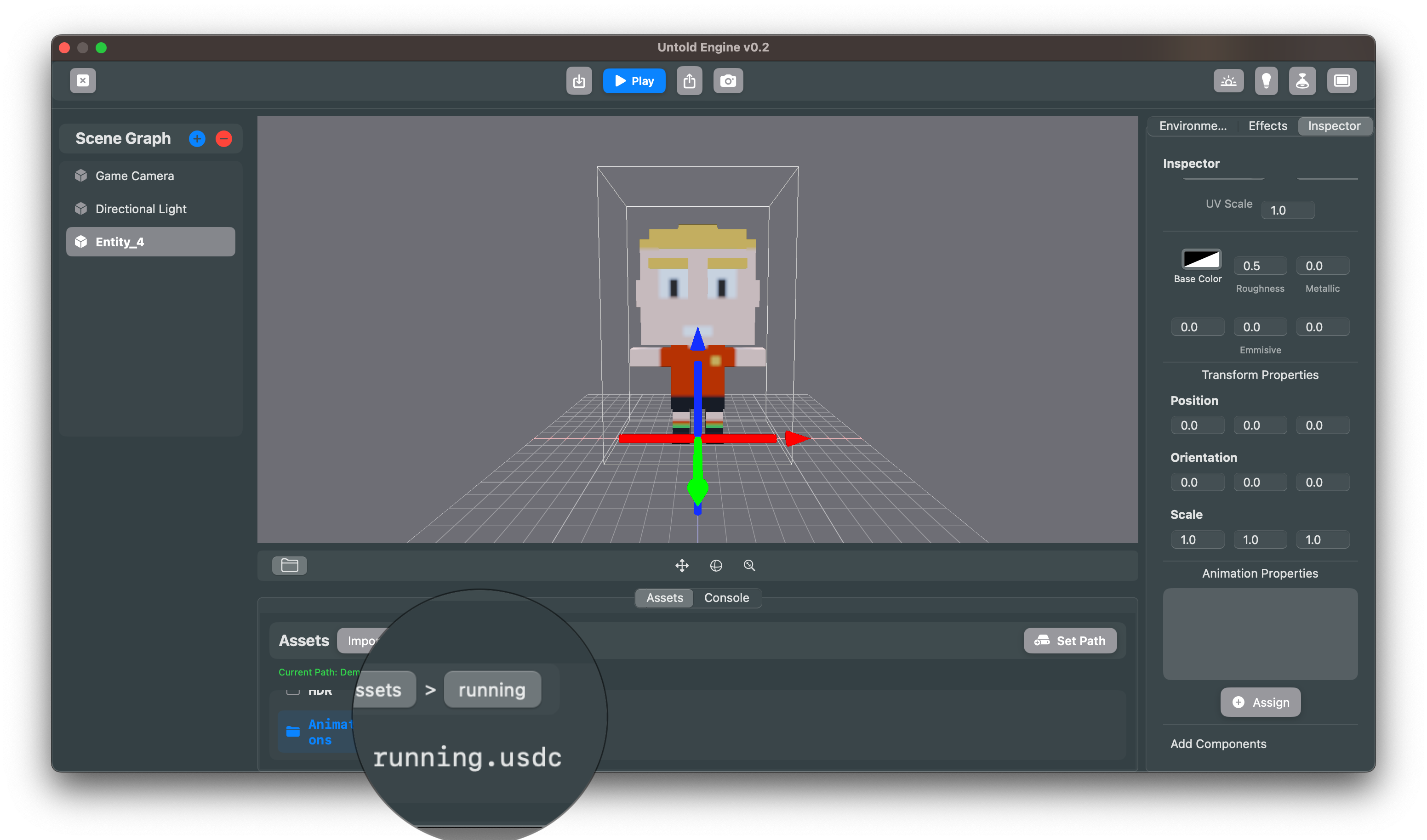
-
Select the Animation File
- Click on the animation file in the Asset Browser.
-
Assign the Animation
- In the Inspector, under the Animation Component, click on Assign.
- The animation’s name should now appear in the component field.
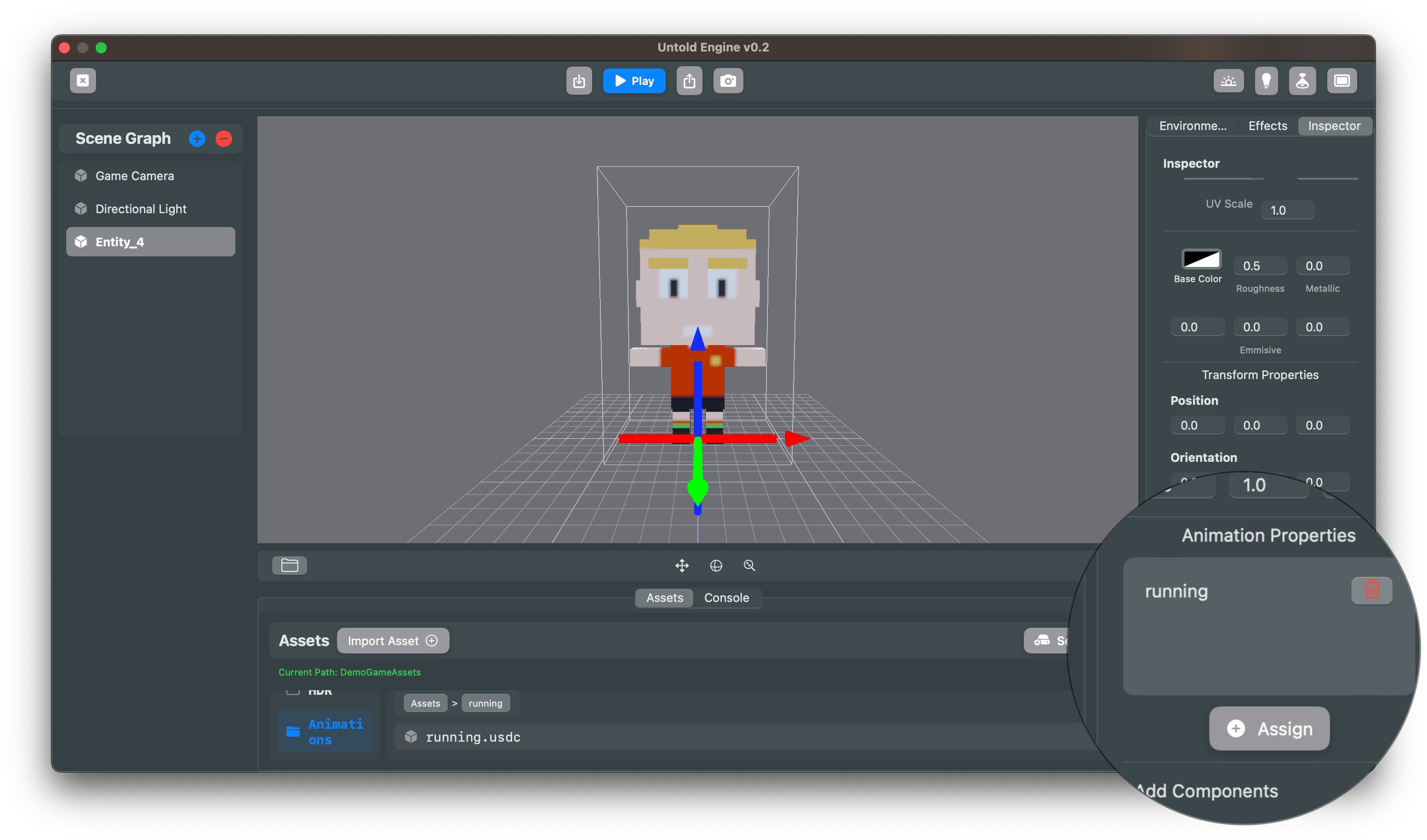
🎬 Your entity is now linked to the animation!