Adding a Character to the Scene using the Editor
Follow these steps to bring a character into your scene or if you prefer, here is a short video.
1. Create a New Entity
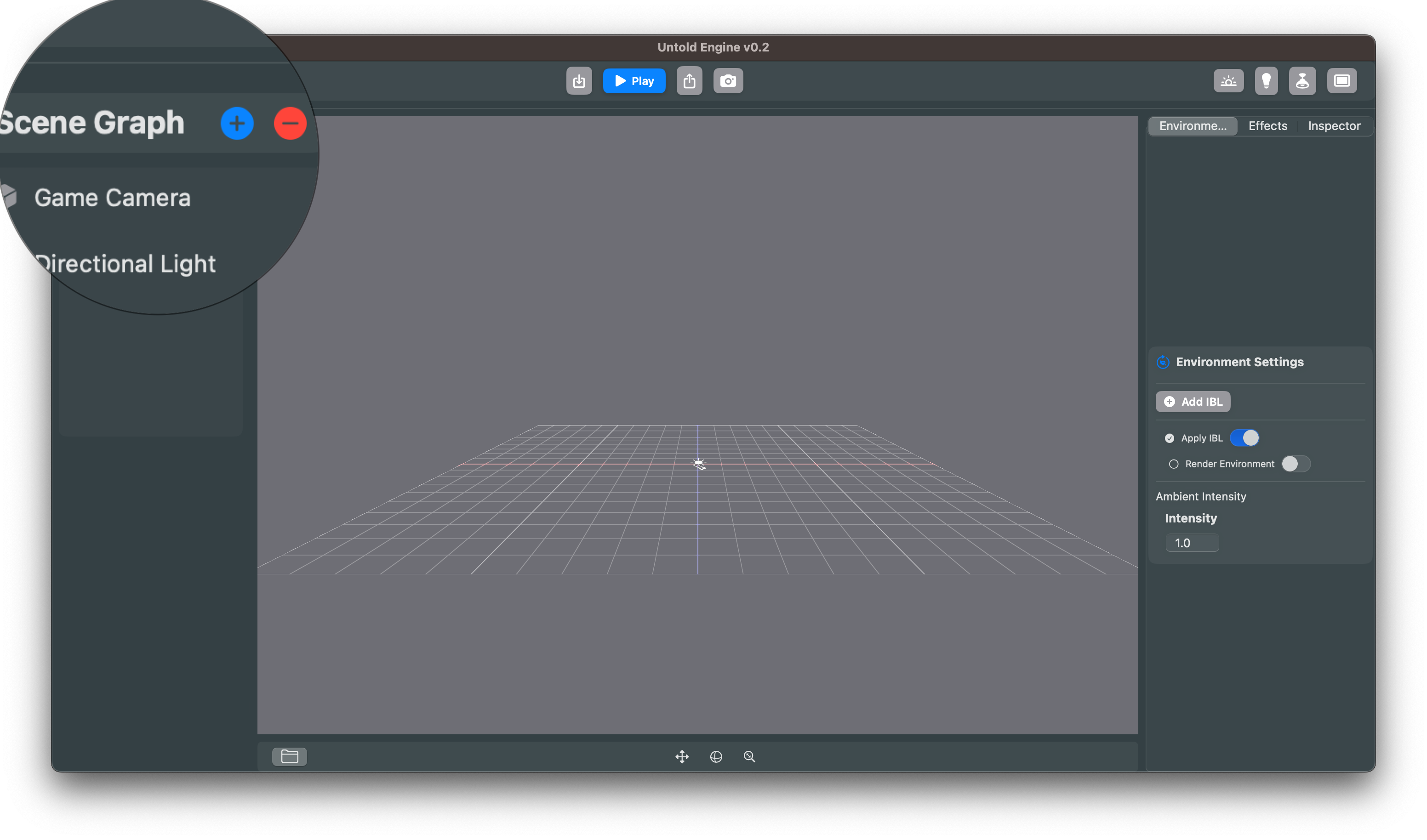
- In the SceneGraph, click the ➕ button.
- A new entity will appear in the SceneGraph list.
2. Rename the Entity (Optional)
- Select the new entity and open the Inspector.
- Change its name to something meaningful (e.g., PlayerCharacter).
3. Add a Render Component
- In the Inspector, click Add Components.
- Choose Render Component from the list.

4. Select Your Model
- Open the Asset Browser and click the 📁 folder icon to maximize it.
- Navigate to your game character’s folder.
- Select the character’s
.usdcfile and click Assign.
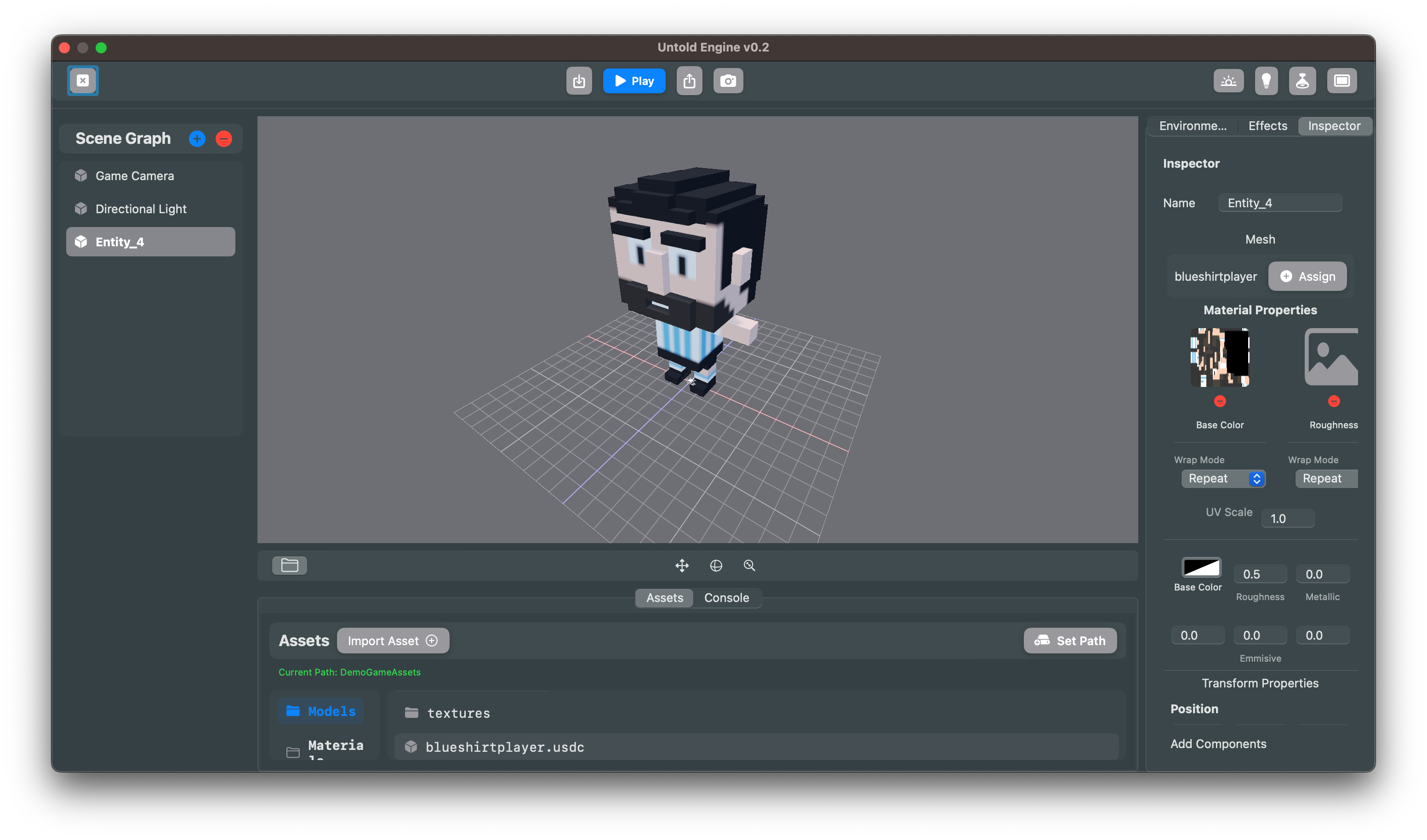
✅ That’s it! Your character should now appear in the scene. 🎉