Importing Assets
Audience: Engine contributors and game developers building their own Xcode projects.
The Untold Engine requires a specific folder structure to locate and load your game assets. This guide explains the required structure and shows you how to organize assets for development and deployment.
⚠️ Required Folder Structure
The engine will NOT find your assets unless they follow this exact structure:
Assets/
├── Animations/                 # .usdz animation files
│   ├── walk/
│   │   └── walk.usdz
│   └── jump/
│       └── jump.usdz
│
├── Gaussians/                  # Gaussian splat point cloud files
│   │
│   └── scene1.ply
│
├── HDR/                        # Environment lighting maps (.hdr)
│   ├── studio.hdr
│   ├── desert.hdr
│   └── forest.hdr
│
├── Materials/                  # One folder per material with all texture maps
│   └── Wood-Material/
│       ├── Wood_BaseColor.png
│       ├── Wood_Normal.png
│       ├── Wood_Roughness.png
│       └── Wood_Metalness.png
│
└── Models/                     # One folder per model
    ├── tree/
    │   └── tree.usdz
    └── character/
        └── character.usdz
Creating the Folder Structure
You have two options:
- Let the editor create it automatically (Recommended) — When you select or create an asset folder in the Asset Browser, the editor will automatically create all required subfolders for you
- Create it manually — Set up the folder structure yourself following the exact layout shown above
Structure Requirements
| Asset Type | Location | Folder Structure | File Format |
|---|---|---|---|
| Models | Assets/Models/ | One subfolder per model | .usdz |
| Animations | Assets/Animations/ | One subfolder per animation | .usdz |
| Gaussians | Assets/Gaussians/ | One subfolder per Gaussian splat | .ply |
| Materials | Assets/Materials/ | One subfolder per material (contains all texture maps) | .png, .jpg |
| HDR Maps | Assets/HDR/ | Flat (no subfolders needed) | .hdr |
💡 Why subfolders? Organizing each model and animation in its own folder keeps assets modular and makes it easier to manage multiple files (e.g., LODs, variants) for a single asset in the future.
Where to Store Your Assets
You have two options for storing assets, and both must use the exact same folder structure shown above:
Option 1: External Folder (Development)
Best for: Rapid iteration during development.
- Store assets in any folder on your computer (e.g.,
~/MyGameAssets/) - The engine reads assets from this external location at runtime
- You can import new assets via the Asset Browser without rebuilding your app
- Before shipping: You must copy this folder into your app's Resources
Setup:
- In the UntoldEditor's Asset Browser, click Select Asset Folder
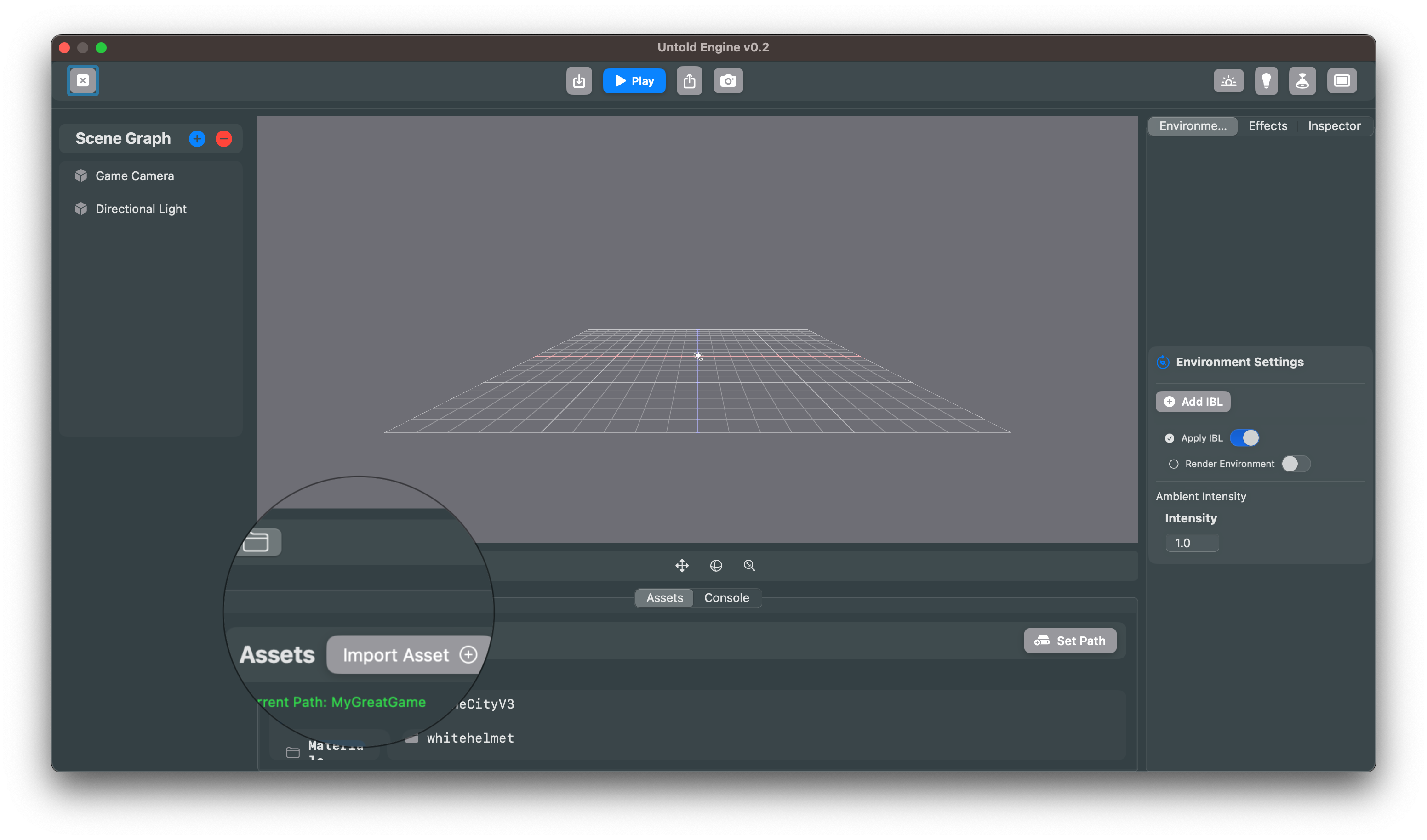
- Either select an existing folder or create a new one
- The editor will automatically create the required subfolders (
Models/,Animations/,HDR/,Gaussians/,Materials/) for you
Option 2: Resources (Main Bundle)
Best for: Final deployment or if you prefer a production-ready setup from the start.
- Add the
Assets/folder directly to your Xcode project's Resources - Assets are bundled with your app (no external folder needed)
- You cannot import new files at runtime
- No extra deployment step required
Setup:
- In your Xcode project, add the
Assets/folder to your app target's Resources - Ensure it uses the same structure:
Resources/Assets/Models/,Resources/Assets/Materials/, etc. - The engine will automatically detect and load assets from the bundle
Recommendation: Use an external folder during development for faster iteration, then copy everything into Resources before release. Just make sure the folder structure remains identical.
Importing Assets (External Folder Only)
When using an external asset folder, you can import assets through the Asset Browser:
Importing 3D Models
- Format:
.usdz - Structure: Each model must be in its own subfolder under
Assets/Models/
Steps:
- Click Models in the Asset Browser
- Click Import Asset
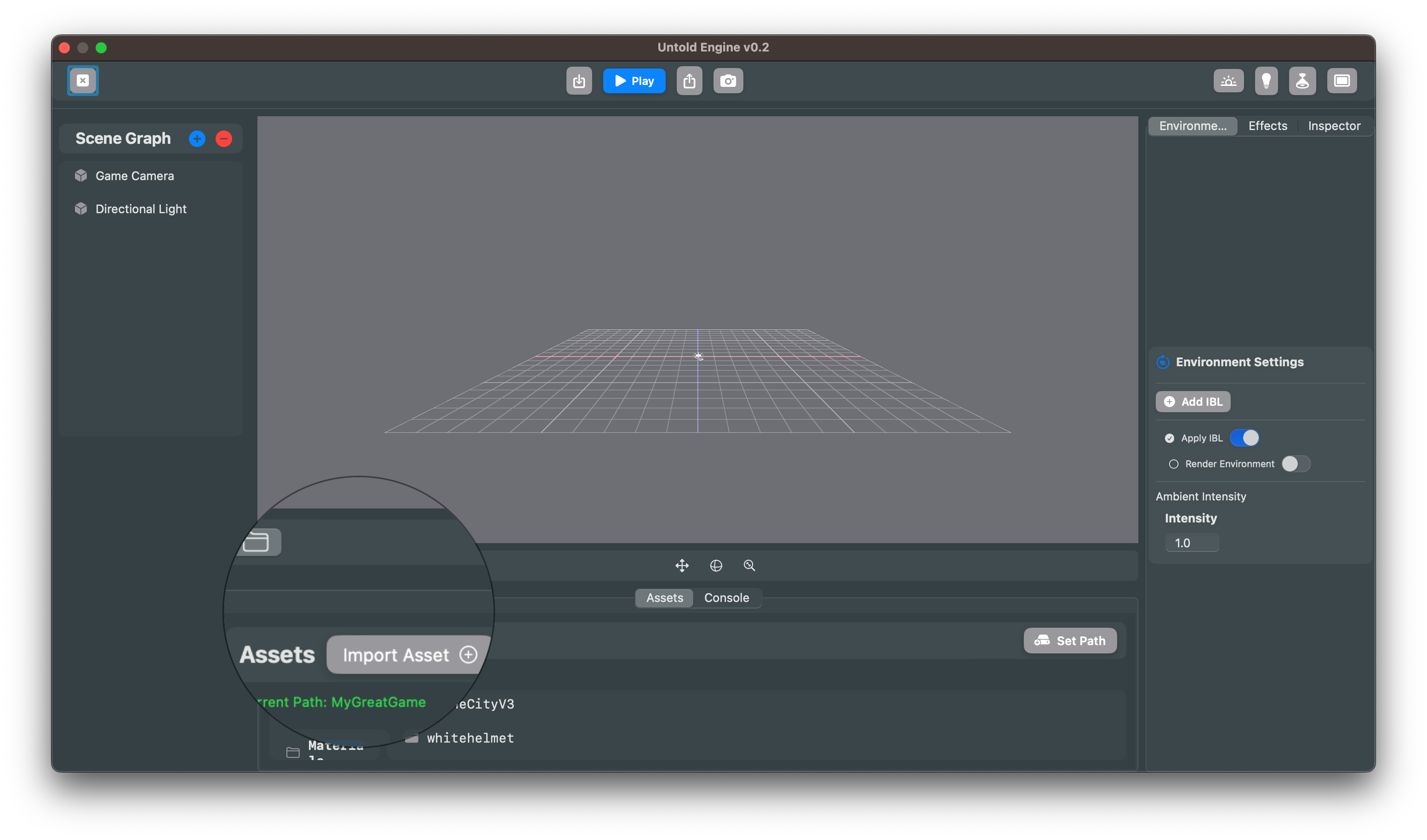
- Select your
.usdzfile - The engine will automatically place it in
Assets/Models/<model-name>/
Importing Animations
- Format:
.usdz - Structure: Each animation in its own subfolder under
Assets/Animations/
Steps:
- Click Animations in the Asset Browser
- Click Import Asset
- Select your animation
.usdzfile - The engine places it in
Assets/Animations/<animation-name>/
Importing Materials
- Format: Folder containing texture maps (
.png,.jpg) - Supported maps: BaseColor, Normal, Roughness, Metallic/Metalness, AO
- Structure: Each material in its own subfolder under
Assets/Materials/
Steps:
- Click Materials in the Asset Browser
- Click Import Asset
- Select the folder containing your texture maps
- The engine organizes it under
Assets/Materials/<material-name>/ - Assign materials to entities via the Inspector
Importing Gaussians
- Format:
.ply(Gaussian splat point cloud) - Structure: Each Gaussian splat in its own subfolder under
Assets/Gaussians/
Steps:
- Click Gaussians in the Asset Browser
- Click Import Asset
- Select your
.plyfile - The engine places it in
Assets/Gaussians/<gaussian-name>/
Adding HDR Maps
- Format:
.hdr - Structure: Place directly in
Assets/HDR/(no subfolders)
Steps:
- Copy your
.hdrfiles directly intoAssets/HDR/ - These are used for environment lighting (IBL) in your scenes
Troubleshooting
Assets not loading?
✅ Check these common issues:
-
Wrong folder structure
- Verify you have
Assets/Models/,Assets/Animations/, etc. - Each model/animation must be in its own subfolder
- Verify you have
-
Case sensitivity
- Folder names are case-sensitive: use
Assets, notassets
- Folder names are case-sensitive: use
-
Missing parent folder
- Don't skip the
Assets/parent folder
- Don't skip the
-
External path not set
- If using an external folder, make sure you've set the path in the Asset Browser
-
Resources not in bundle
- If using Resources, verify the folder is added to your Xcode target's Copy Bundle Resources phase
Example: Complete Asset Setup
Here's what a properly structured asset folder looks like:
MyGameAssets/              # Your root folder (external or Resources)
└── Assets/                # REQUIRED parent folder
    ├── Animations/
    │   ├── walk/
    │   │   └── walk.usdz
    │   ├── run/
    │   │   └── run.usdz
    │   └── jump/
    │       └── jump.usdz
    │
    ├── Gaussians/
    │   ├── garden/
    │   │   └── garden.ply
    │   └── room/
    │       └── room.ply
    │
    ├── HDR/
    │   ├── studio.hdr
    │   └── forest.hdr
    │
    ├── Materials/
    │   ├── Wood/
    │   │   ├── Wood_BaseColor.png
    │   │   ├── Wood_Normal.png
    │   │   ├── Wood_Roughness.png
    │   │   └── Wood_Metalness.png
    │   └── Metal/
    │       ├── Metal_BaseColor.png
    │       ├── Metal_Normal.png
    │       └── Metal_Roughness.png
    │
    └── Models/
        ├── tree/
        │   └── tree.usdz
        ├── rock/
        │   └── rock.usdz
        └── character/
            └── character.usdz
For a complete working example, download the Demo Game Assets v1.0.
Summary
- The engine requires the
Assets/folder structure with specific subfolders:Models/,Animations/,Gaussians/,Materials/, andHDR/ - Each model, animation, and Gaussian splat must be in its own subfolder
- Use the same structure whether storing assets externally (development) or in Resources (deployment)
- External folders allow runtime imports; Resources bundles assets with your app
- Before shipping, copy your external folder into your app's Resources