Create a Game for MacOS
For your convinience, I have created a game template that is ready for you to use. Simply clone the template and you will be ready to go.
However, if you want to create the project yourself, follow the guide below:
Prerequisites
Before you begin, ensure you have:
- Xcode installed (version 13 or later recommended).
- The Untold Engine repository URL: https://github.com/untoldengine/UntoldEngine.git
Game for macOS platform
Step 1: Create a New macOS Game Project
- Open Xcode and navigate to: File → New → Project.
- Select Game under the macOS platform and click Next.
- Configure your project:
- Product Name: Enter a name for your game (e.g., "MyRacingGame").
- Team: Select your Apple Developer Team (if applicable).
- Language: Swift
- Game Technology: Metal
- Click Next, then choose a location to save your project, and click Create.
Step 2: Clean Up Default Files
Xcode generates some default files that are unnecessary for the Untold Engine. Remove the following files from your project:
- GameViewController.swift
- Renderer.swift
- Shaders.metal
- ShaderTypes.h
To delete them:
- Right-click each file in the Project Navigator.
- Select Delete and confirm.
Step 3: Add the Untold Engine as a Package Dependency
- Open your Xcode project.
- Go to: File → Add Packages...
- In the search field, paste the Untold Engine repository URL: https://github.com/untoldengine/UntoldEngine.git
- Select the branch or version (e.g., master) and click Add Package.
- Ensure the package is added to your game target and click Add Package.
Step 4: Set Up the AppDelegate
Now that the engine is included, configure your AppDelegate.swift to initialize the Untold Engine and set up your game window.
Replace the contents of AppDelegate.swift with:
import Cocoa
import UntoldEngine
import MetalKit

class GameScene {
    init() {
        // Initialize game assets and logic here
    }

    func update(deltaTime: Float) {
        // Game update logic
    }

    func handleInput() {
        // Input handling logic
    }
}

@main
// AppDelegate: Boiler plate code -- Handles everything – Renderer, Metal setup, and GameScene initialization
class AppDelegate: NSObject, NSApplicationDelegate {
    var window: NSWindow!
    var renderer: UntoldRenderer!
    var gameScene: GameScene!

    func applicationDidFinishLaunching(_: Notification) {
        print("Launching Untold Engine v0.2")

        // Step 1. Create and configure the window
        window = NSWindow(
            contentRect: NSRect(x: 0, y: 0, width: 1920, height: 1080),
            styleMask: [.titled, .closable, .resizable],
            backing: .buffered,
            defer: false
        )

        window.title = "Untold Engine v0.2"
        window.center()

        // Step 2. Initialize the renderer and connect metal content
        guard let renderer = UntoldRenderer.create() else {
            print("Failed to initialize the renderer.")
            return
        }

        window.contentView = renderer.metalView

        self.renderer = renderer

        renderer.initResources()

        // Step 3. Create the game scene and connect callbacks
        gameScene = GameScene()
        renderer.setupCallbacks(
            gameUpdate: { [weak self] deltaTime in self?.gameScene.update(deltaTime: deltaTime) },
            handleInput: { [weak self] in self?.gameScene.handleInput() }
        )

        if enableEditor {
            if #available(macOS 13.0, *) {
                let hostingView = NSHostingView(rootView: EditorView(mtkView: renderer.metalView))
                window.contentView = hostingView
            } else {
                // Fallback on earlier versions
            }
        }

        window.makeKeyAndOrderFront(nil)
        NSApp.setActivationPolicy(.regular)
        NSApp.activate(ignoringOtherApps: true)
    }

    func applicationShouldTerminateAfterLastWindowClosed(_: NSApplication) -> Bool {
        true
    }
}
Step 5: Run Your Game
- Build and run your project in Xcode.
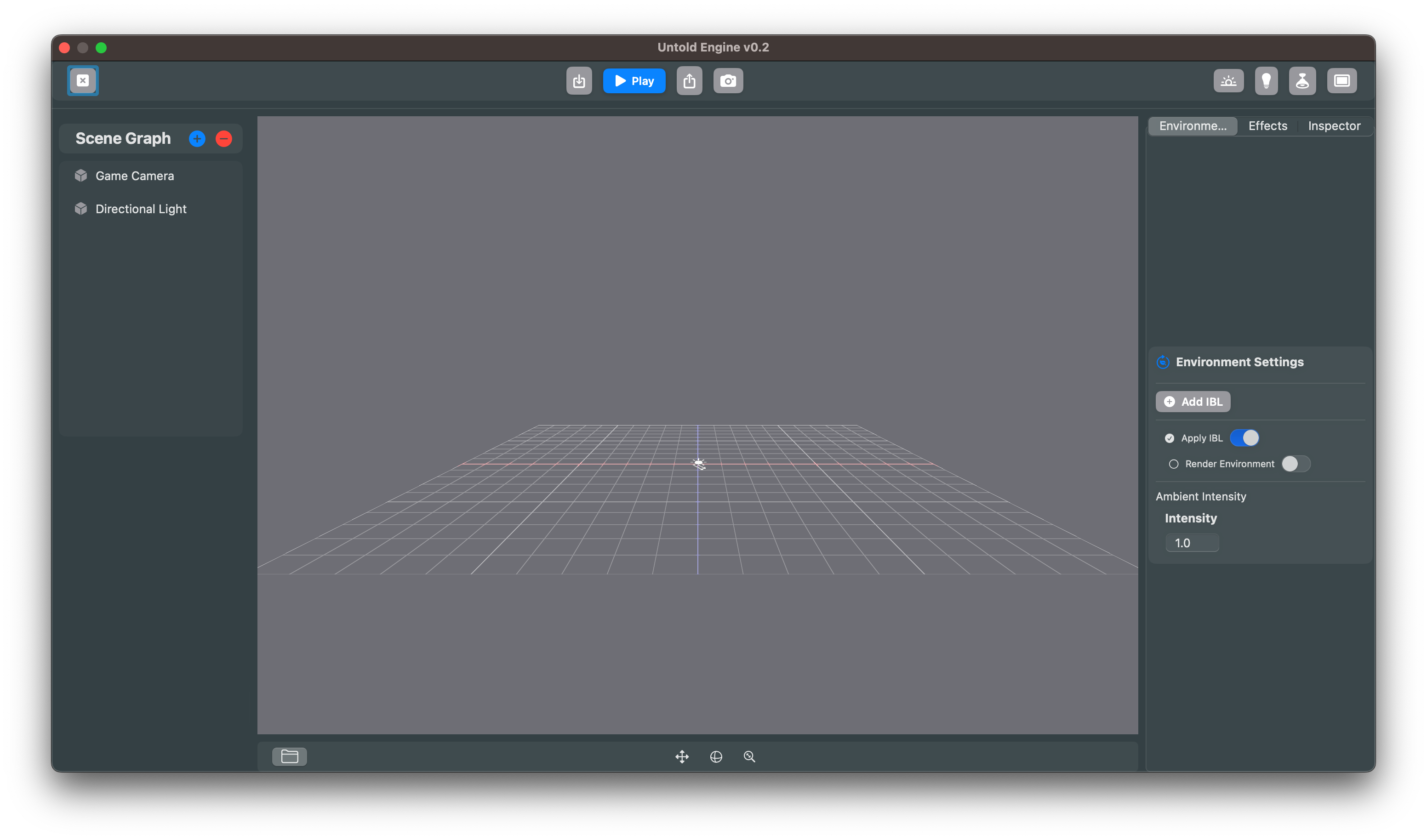
- If everything is set up correctly, you’ll see the Untold Engine Editor show up.
Importing Assets
To import assets such as models, textures, animations, etc, follow the steps in Import-Export section.
Troubleshooting
ShaderType.h Not Found
- Cause: Xcode is referencing an outdated bridging header.
- Solution: Go to Build Settings, search for "Objective-C Bridging Header," and remove any path present.

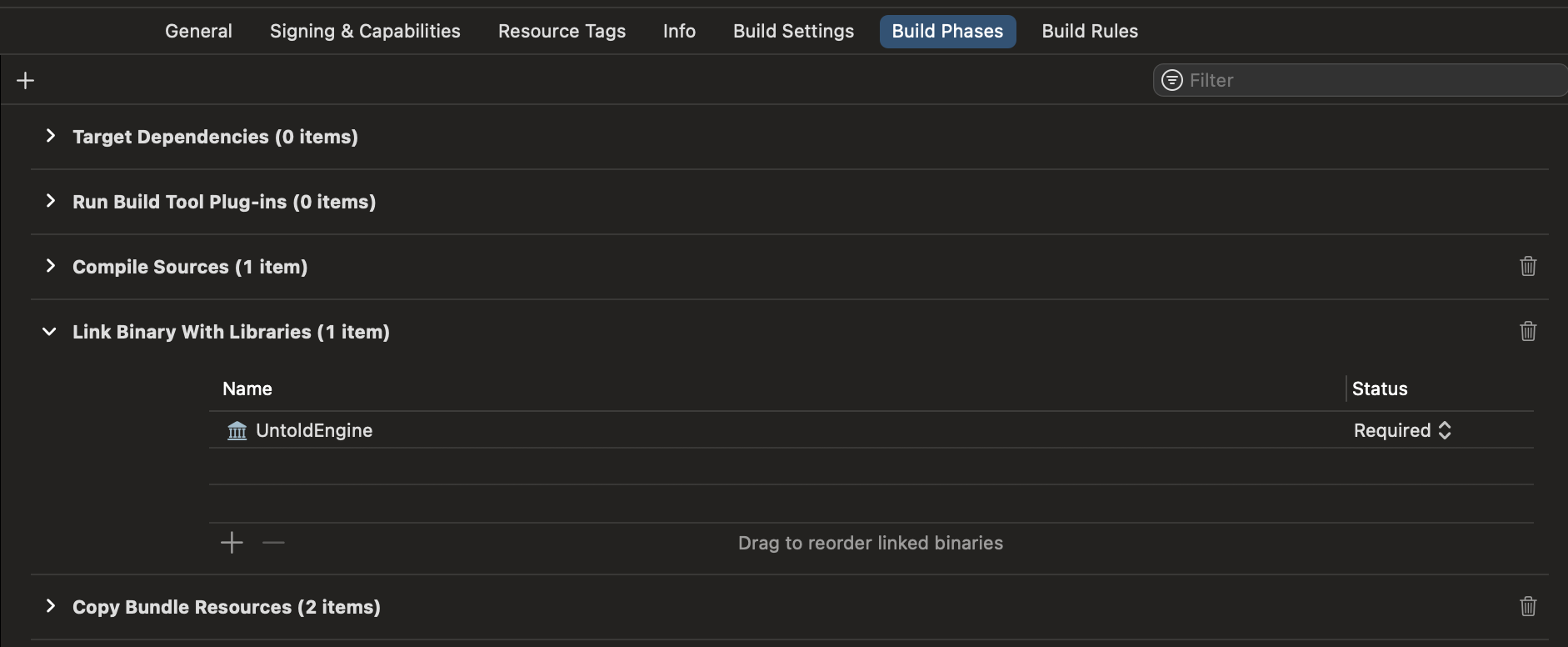
Linker Issues Cause: The Untold Engine framework is not linked correctly. Solution: Ensure the "Untold Engine" framework is added to Link Binary With Libraries under the Build Phases section.