Script Workflow Integration
Overview
The UntoldEditor now supports integrated script development using Swift and the USC DSL. This allows you to create, edit, and build game scripts directly within the editor.
UI Layout
Script management is split into two areas:
Toolbar (Top of Editor)
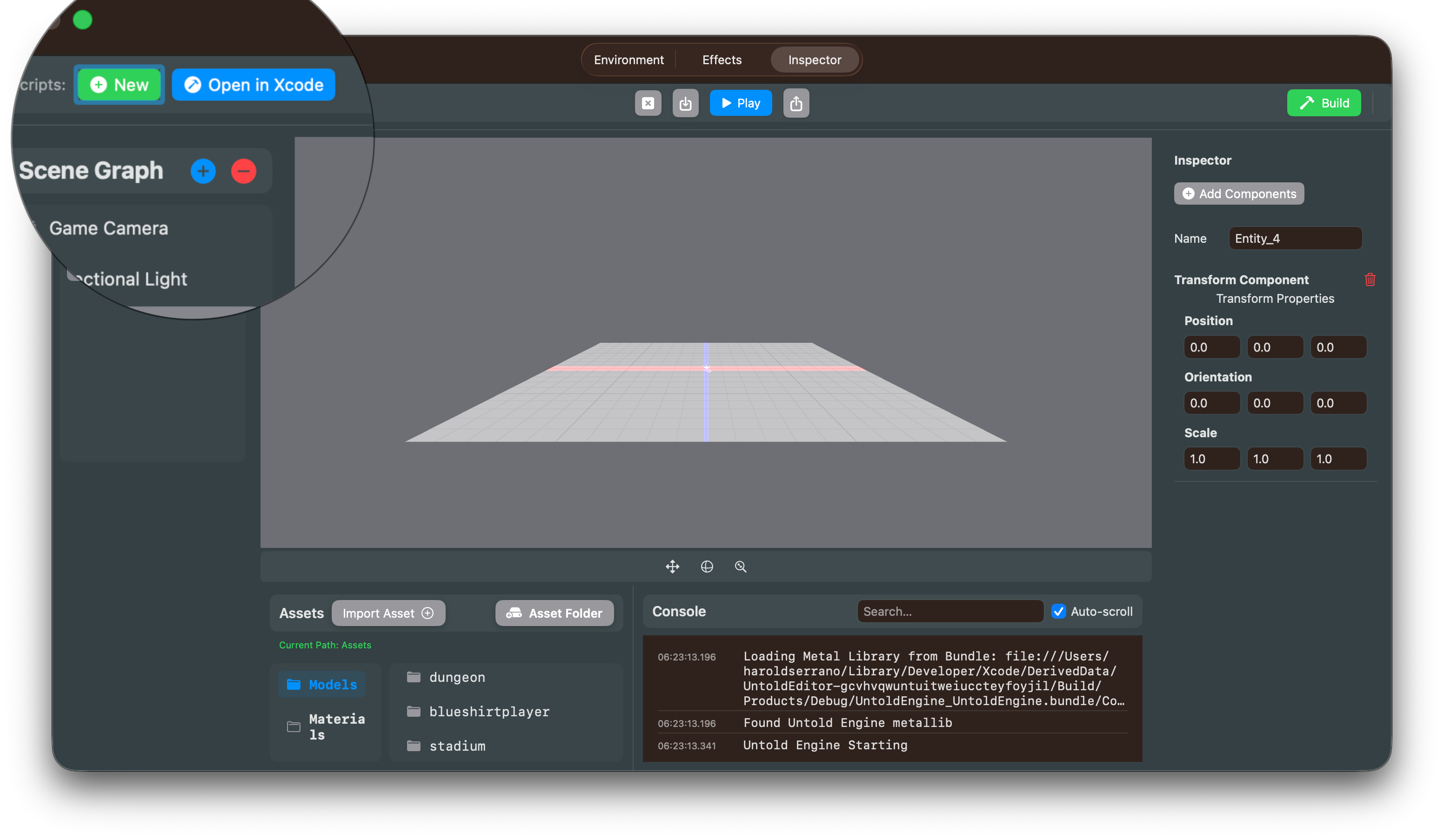
The toolbar contains project-level script operations:
- Scripts: New (green) - Create new script files
- Scripts: Open in Xcode (blue) - Opens the Scripts project in Xcode for editing and building
These buttons are always accessible regardless of entity selection.
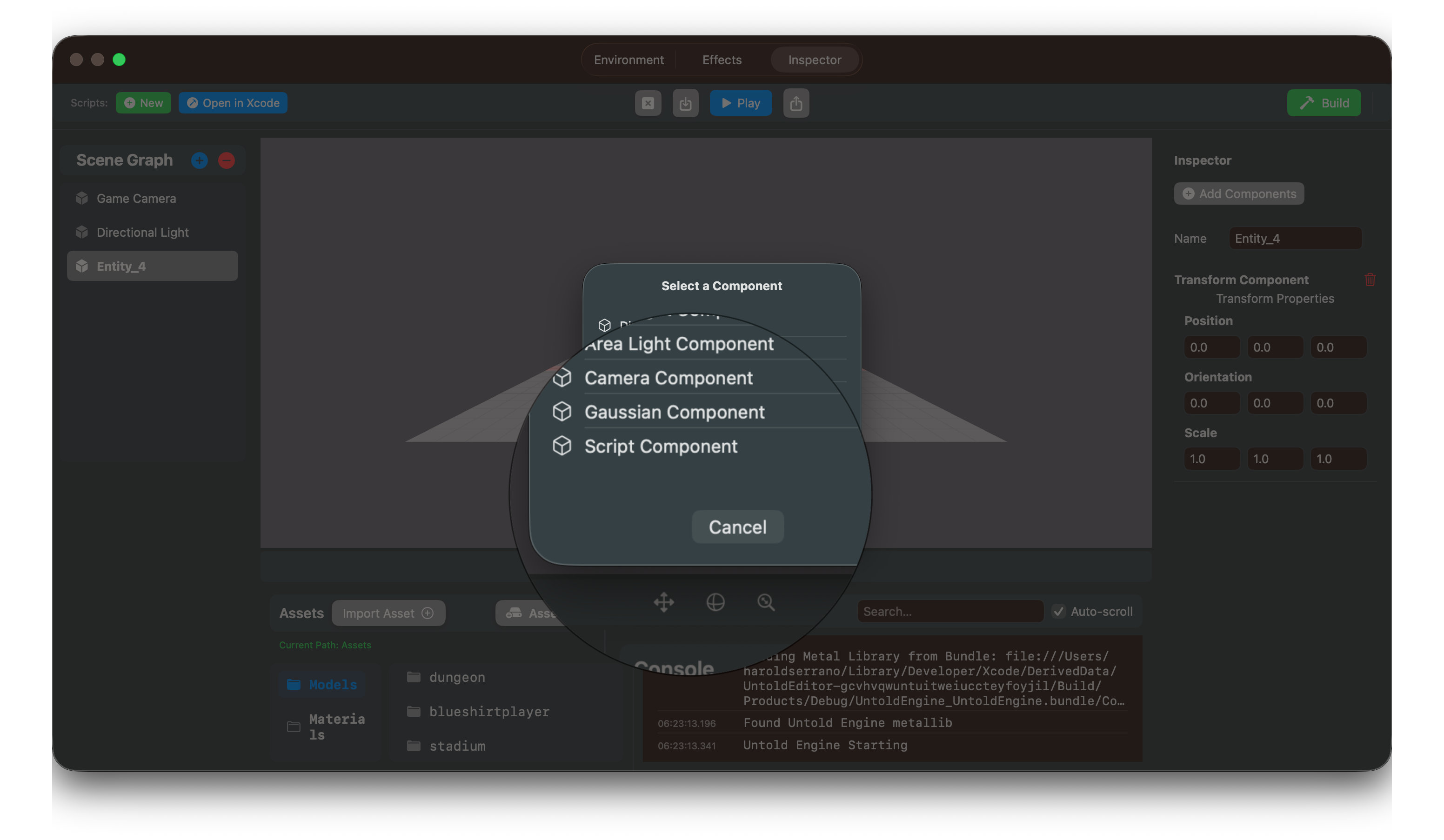
** Add Script Component to Entity**
Add a scripting component to the entity by selecting Script Component from the Component drop down menu
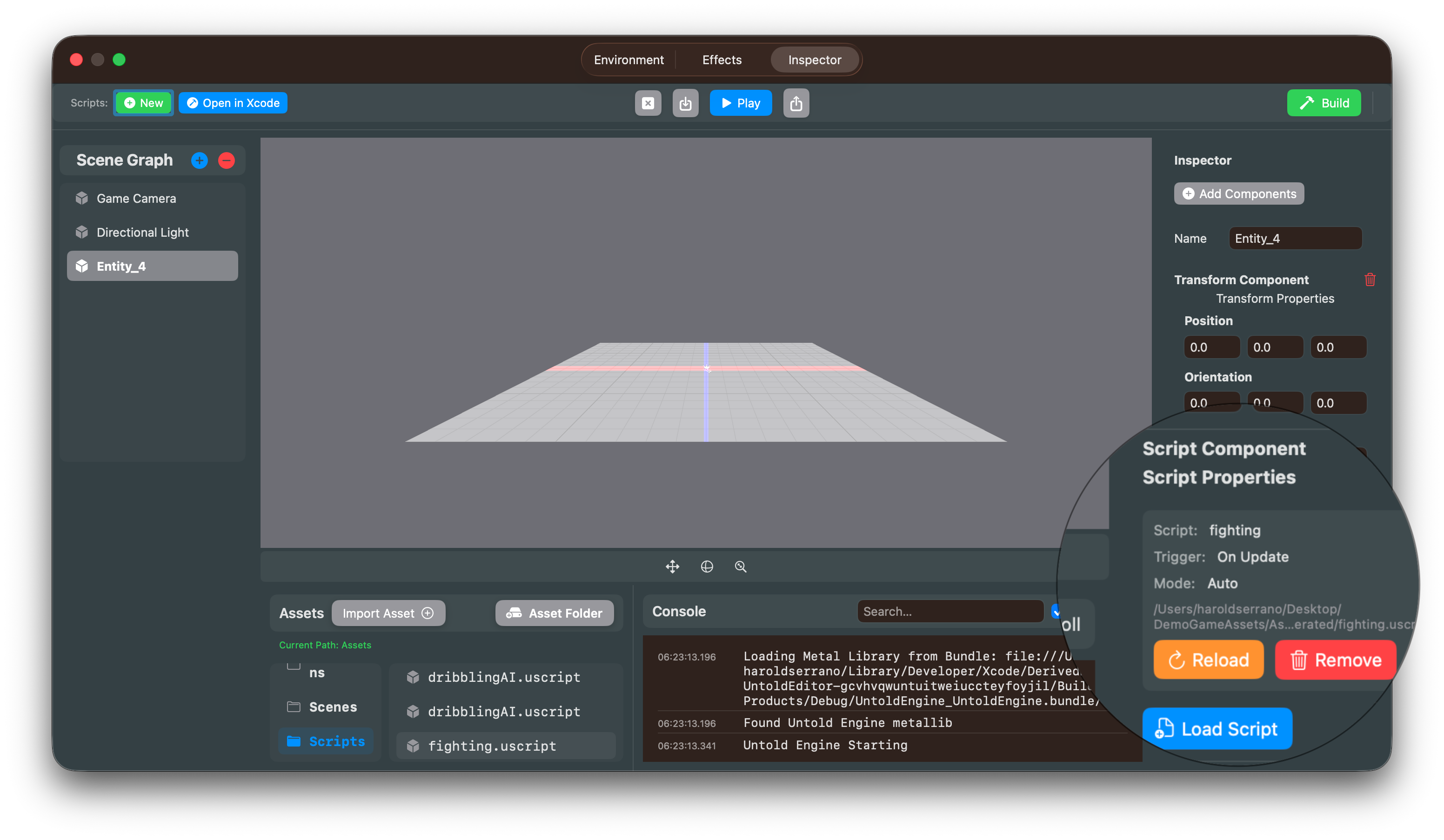
Script Component Inspector (Right Panel - Entity-Specific)
When an entity with a ScriptComponent is selected, you'll see:
- Load Script (blue) - Attach a
.uscriptfile to this entity - Reload (orange) - Hot-reload this entity's script
These buttons are entity-specific and only available when editing entities with scripts.
Workflow
1. Set Asset Base Path (Required First)
Before creating scripts, make sure you've set an asset base path in the editor:
- Use File → Set Asset Folder
- This will be the root directory for your project assets
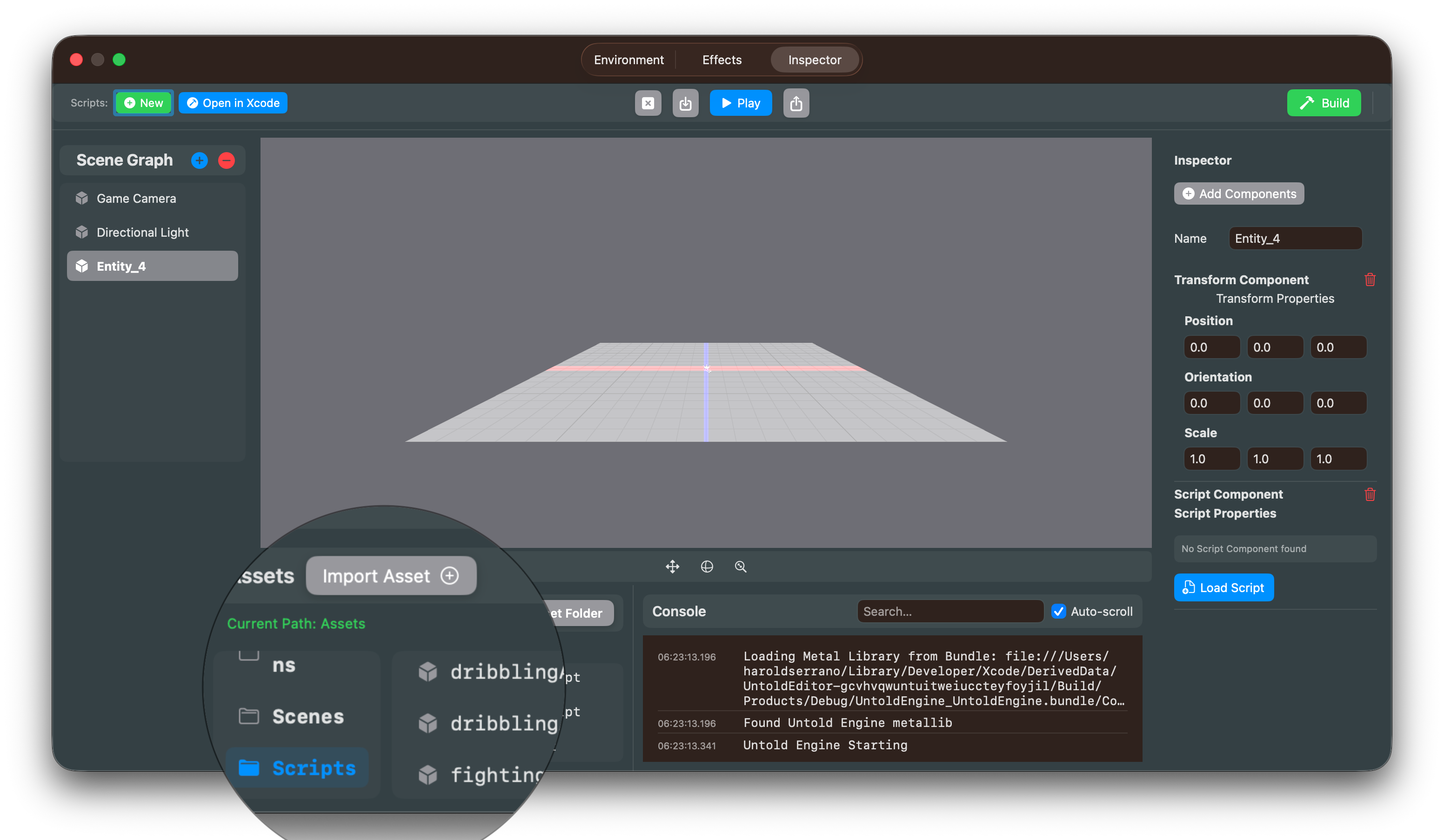
- Scripts will be created in
{AssetBasePath}/Scripts/ - Scripts will be accessible from the Asset Browser view as shown below
2. Create New Script
Click the "New" button in the toolbar (Scripts section):
- Enter a script name (e.g.,
PlayerController) - Name must be alphanumeric and start with a letter
- A Swift file will be created at:
Scripts/Sources/GenerateScripts/PlayerController.swift - The file will contain a template with the USC DSL structure
- The script editor will open automatically
Important: After creating a script, you must manually add the generation function call to GenerateScripts.swift:
@main
struct GenerateScripts {
    static func main() {
        print("🔨 Generating USC scripts...")

        let outputDir = URL(fileURLWithPath: "Generated/")
        try? FileManager.default.createDirectory(at: outputDir, withIntermediateDirectories: true)

        // Add your script generation calls here:
        generatePlayerController(to: outputDir)  // <-- Add this line manually

        print("✅ All scripts generated in Generated/")
    }
}
3. Edit & Build Scripts in Xcode
Click the "Open in Xcode" button in the toolbar (Scripts section):
- Opens
Package.swiftin Xcode - Full IDE experience with autocomplete, syntax highlighting, and debugging
- Edit your script files in Xcode's editor
- IMPORTANT: Edit
GenerateScripts.swiftto add your script generation calls (see step 2) - Build and run in Xcode (Cmd+R) to generate
.uscriptfiles - Output appears in Xcode's console
4. Write USC DSL Logic in Xcode
In Xcode, open your script file and write your game logic using the USC DSL:
extension GenerateScripts {
    static func generatePlayerController(to dir: URL) {
        let script = buildScript(name: "PlayerController") { s in
            s.onUpdate()
                .getProperty(.position, as: "pos")
                .setVariable("offset", to: Vec3(x: 0.0, y: 0.1, z: 0.0))
                .addVec3("pos", "offset", as: "newPos")
                .setProperty(.position, toVariable: "newPos")
        }

        let outputPath = dir.appendingPathComponent("PlayerController.uscript")
        try? saveUSCScript(script, to: outputPath)
        print("  ✅ PlayerController.uscript")
    }
}
5. Build in Xcode
In Xcode, press Cmd+R (or Product → Run):
- Compiles all scripts and generates
.uscriptfiles inGenerated/ - Build output appears in Xcode's console
- First build may take 30-60 seconds (downloading dependencies)
- Subsequent builds are much faster (incremental)
- You can see compilation errors inline in Xcode
6. Load Generated Script
The new generated .uscript will appear in the Script Selection in the Asset Browser View. (You may need to switch back and forth for the script to show up)
- Select a
.uscriptfile to attach to the entity - The script will be assigned to the entity's ScriptComponent
7. Hot Reload (Optional)
In the Script Component Inspector, click the "Reload" button:
- Reloads the currently attached script from disk
- Useful for testing changes without reassigning
Project Structure
Once initialized, your project will have this structure:
YourAssetFolder/
├── Models/
├── Textures/
└── Scripts/                              (Created by editor)
    ├── Package.swift                     (Swift package definition)
    ├── .gitignore                        (Ignores .build/ and Generated/)
    ├── Sources/
    │   └── GenerateScripts/
    │       ├── GenerateScripts.swift     (Main entry point - YOU CONTROL THIS)
    │       ├── PlayerController.swift    (Your scripts - extensions)
    │       └── EnemyAI.swift            (Your scripts - extensions)
    └── Generated/                        (Output from swift run)
        ├── PlayerController.uscript
        └── EnemyAI.uscript
Tips
Version Control
Commit:
- ✅
Scripts/Sources/directory (Swift source code) - ✅
Scripts/Package.swift - ❌
Scripts/.build/directory (build artifacts) - ❌
Scripts/Generated/directory (generated .uscript files)
The .gitignore is automatically created to exclude build artifacts.
Multiple Scripts
- Each script is a separate
.swiftfile - All scripts are extensions of
GenerateScripts - You manually control which scripts are generated in
GenerateScripts.swiftmain() - One
swift runbuilds all scripts at once
Debugging Build Errors
- Build output appears in the console
- Swift compiler errors will show file names and line numbers
- Common issue: Forgetting to add the generation function call to
GenerateScripts.swift
Development Workflow
- Click "Open in Xcode" in the editor toolbar
- Edit Swift files in Xcode
- Build and run in Xcode (Cmd+R)
- Return to UntoldEditor
- Click "Load" or "Reload" to attach/update the script on your entity
- Test changes in Play mode
USC DSL Reference
Common DSL methods available in your scripts:
Events:
.onStart()- Runs once when Play mode starts.onUpdate()- Runs every frame.onCollision(tag: "TagName")- Runs on collision with tagged entities (Coming soon).onEvent("EventName")- Runs when custom event fires
Properties:
.getProperty(.position, as: "varName")- Read entity property.setProperty(.velocity, toVariable: "varName")- Write from variable.setProperty(.position, to: Vec3(...))- Write from literal
Control Flow:
.ifCondition(lhs: .variableRef("var"), .greater, rhs: .float(10)) { ... }.ifGreater("var", than: 10.0) { ... }- Convenience method.ifLess("var", than: 10.0) { ... }- Convenience method.ifEqual("var", to: 1.0) { ... }- Convenience method
Physics:
.applyForce(force: Vec3(...))- Apply force (literal Vec3 only)
Transform:
.translateTo(x:, y:, z:)- Set absolute position.translateBy(x:, y:, z:)- Move relative.rotateTo(degrees:, axis: Vec3(...))- Set rotation.rotateBy(degrees:, axis: Vec3(...))- Rotate relative
Math:
.addVec3("v1", "v2", as: "result").scaleVec3("vec", literal: 2.0, as: "result").scaleVec3("vec", by: "scaleVar", as: "result").addFloat("a", "b", as: "sum").mulFloat("a", "b", as: "product").lengthVec3("vec", as: "length")
Input:
.ifKeyPressed("W") { ... }
Debugging:
.log("message")
For complete DSL reference, see USC_Scripting_API.md.