Getting Started
This guide takes you from a fresh Untold Engine checkout to a working Vision Pro project. By the end of this short tutorial, you will be able to render this Archviz model in the Vision Pro/Simulator
Click the image below for a video.
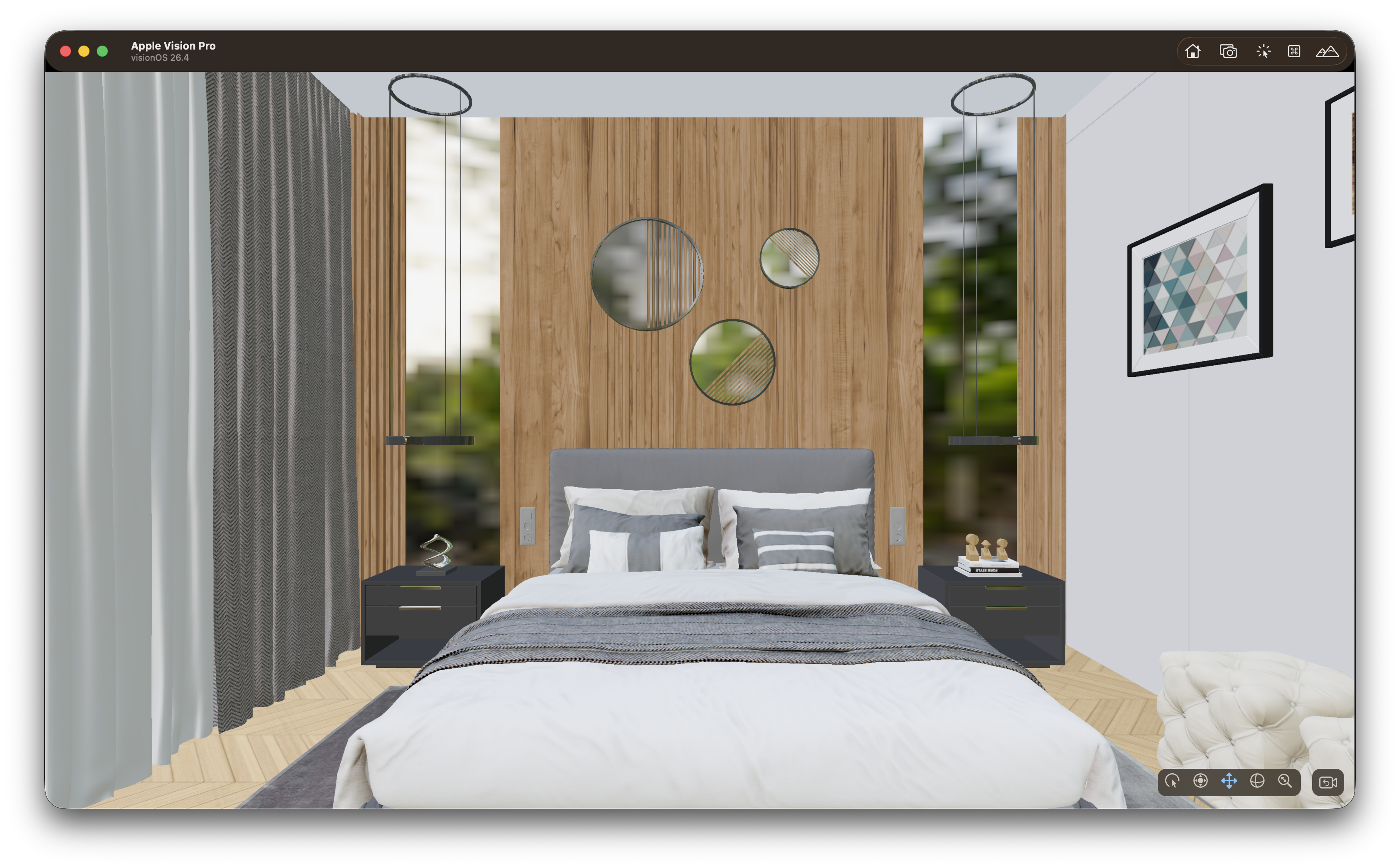
Prefer a visual workflow? The Untold Editor lets you build and arrange scenes without writing setup code, then load the result with
loadUntoldScene(named:). It's optional — this guide also covers authoring scenes entirely in code — but it's the quickest way to get something on screen. Jump to Loading a.untoldscenebelow.
Clone the Untold Engine
Recommendation: Use the latest stable release instead of the
developbranch. Thedevelopbranch is the bleeding-edge version of Untold Engine and is updated frequently, so it may contain unstable changes or regressions.
Clone the repository and launch the demo:
git clone https://github.com/untoldengine/UntoldEngine.git
cd UntoldEngine
git checkout v0.22.0
swift run ShowcaseDemo
Create an Xcode Project
You can create projects using the Untold Engine Command Line Interface.
Use untoldengine to generate a ready-to-run Xcode project with Untold Engine wired in.
Install it from the repository:
Now create an Xcode project. The example below uses --platform visionos to
create a Vision Pro project.
Vision Pro Example
cd ~/Projects
untoldengine create VisionGame --platform visionos
open VisionGame/VisionGame.xcodeproj
If you want to create a project for other platforms, you can use the flags below:
Platform options
# visionOS (Apple Vision Pro)
untoldengine create MyGame --platform visionos

# macOS (default)
untoldengine create MyGame --platform macos

# iOS with ARKit
untoldengine create MyGame --platform ios-ar

# iOS
untoldengine create MyGame --platform ios
Dependency behavior by platform:
visionos:UntoldEngineXR+UntoldEngineARios-ar:UntoldEngineARiosandmacos:UntoldEngine
After your project is created, you'll get an Xcode project with a GameData folder that contains the assets your game loads at runtime.
Get Starter Assets
Once your project is created, install the Archviz Starter Asset Pack directly from the CLI:
The Archviz Starter Pack includes an archviz model ready to run immediately. The CLI downloads the pack and merges its contents into your project's GameData folder automatically. If a file already exists you will be prompted before it is overwritten.
To see all available asset packs:
Loading a Single Asset
Once in your Xcode project, head over to the init() function in Sources/<ProjectName>/GameScene.swift.
Use setEntityMeshAsync to load an .untold file as an always-resident asset.
This is the right choice for props, characters, and any object that should stay
in memory for the lifetime of the scene.
setEntityMeshAsynchere works whetherBedroomexported as a single.untoldor, for a.blendscene with more than one independent model, a.untoldpack— omittingwithExtensionprobes for either.loadSceneAuthoredbelow is different: it only ever resolves a single.untoldand has no effect on a.untoldpack, since a pack has no scene-level slot for the lights/cameras/color-grade it would bring in — see Using the Untold Engine CLI.
//...After configureEngineSystems()

let entity = createEntity()

setEntityMeshAsync(entityId: entity, filename: "Bedroom"){ success in
    if success {

        // Load blender authored color management
        loadSceneAuthored(filename: "Bedroom", withExtension: "untold")

        // Enable environement settings

        setRendering(.environment(.ibl(true)))
        setRendering(.environment(.asset("forest.exr")))
        setRendering(.environment(.intensity(0.9)))
        setRendering(.environment(.visible(true)))

        // set scene ready if loading was successful
        setSceneReady(success)
    }

}
setEntityMeshAsync is non-blocking. The completion block fires on the main thread
once the mesh is parsed and uploaded to GPU memory.
Configuring the Engine
Now, let's configure the Untold Engine so that it can accept input gestures along with other important settings:
Head to configureEngineSystems() and make sure to add the following:
private func configureEngineSystems() {

    gameMode = true

    // Register XR input gestures
    registerXREvents()
    setInput(.xr(.pickingBackend(.octreeGPUPreferred)))
    setInput(.xr(.twoHandRotateAxisMode(.dynamicSnapped)))
    setInput(.xr(.sceneReady(true)))

    // Enable post processing and anti-aliasing
    setRendering(.postProcessing(.enabled))
    setRendering(.antiAliasing(.msaa))
    setPostFX(.ssao(.enabled(false)))

    // Enable super detail textures
    TextureStreamingSystem.shared.apply(.superdetailed)
}
Handle Input
Now let's add logic to the input handling function. For this tutorial, we want to be able to drag the root scene by pinching our fingers, to do so, we call the Spatial Manipulation System, as shown below:
func handleInput() {
    // Skip logic if not in game mode
    if gameMode == false { return }
    if isSceneReady() == false {return}

    let state = getXRSpatialInputState()

    // transform scene root.
    // Pinch + Drag to move scene root
    // Two-hands rotate to rotate the scene root
    SpatialManipulationSystem.shared.processAnchoredSceneManipulationLifecycle(
        from: state,
        dragSensitivity: 10.0,
        rotateSensitivity: 1.0
    )
}
Now, Build and Run. Click on Start Experience and you should see the archviz rendered on either the Vision Pro Simulator or in the actual device.
Loading a Streamed Scene
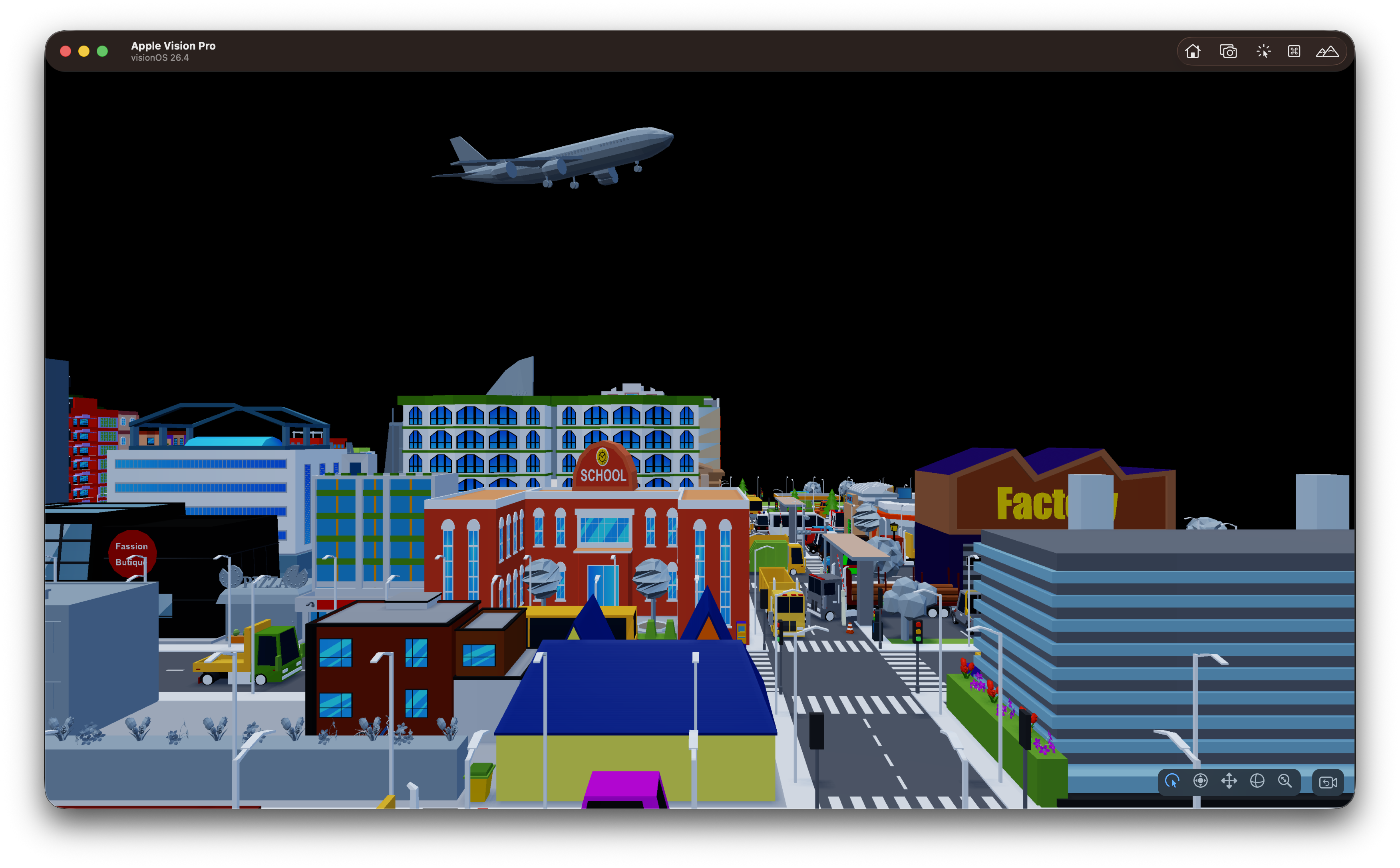
Now, let's say that you want to load a large scene, for example a city model with many buildings. In those instances, you should render the scene using the Tile Streaming feature of the engine. More especifically, you should use setEntityStreamScene to load a large scene that streams tiles in and out of GPU memory based on camera proximity.
Let's download a Stream Starter Scene
To load a Tiled-Stream scene, you need to use setEntityStreamScene and pass the json extension as shown below.
//..After configureEngineSystems()


let sceneRoot = createEntity()
setEntityName(entityId: sceneRoot, name: "LowPolyCity")

// Local manifest
setEntityStreamScene(entityId: sceneRoot, manifest: "LowPolyCity", withExtension: "json") { success in
    setSceneReady(success)
}
Now, build and run the vision pro app and you should see a streaming city getting rendered. Click the image below for a video.
Loading a Remote Streamed Scene
To stream a remote scene, use the same setEntityStreamScene(...) API with a URL to your manifest JSON file.
// Remote manifest (downloaded and cached on demand)
if let url = URL(string: "https://cdn.example.com/City/City.json") {
    setEntityStreamScene(entityId: sceneRoot, url: url) { success in
        setSceneReady(success)
    }
}
setEntityStreamScene registers lightweight stub entities for every tile in the
manifest, all parented under sceneRoot (no geometry is parsed at this point).
GeometryStreamingSystem then loads and unloads tile geometry as the camera moves.
See Tile-Based Streaming for the full streaming
architecture.
Legacy overloads —
loadTiledScene(manifest:)andloadTiledScene(url:)remain available for backwards compatibility. They create an internal root entity automatically.
Loading a .untoldscene
The Untold Editor is a companion app for building scenes visually — placing entities, lighting, and cameras — without hand-writing setup code. It's now stable enough for day-to-day use; download the latest build from the Releases page.
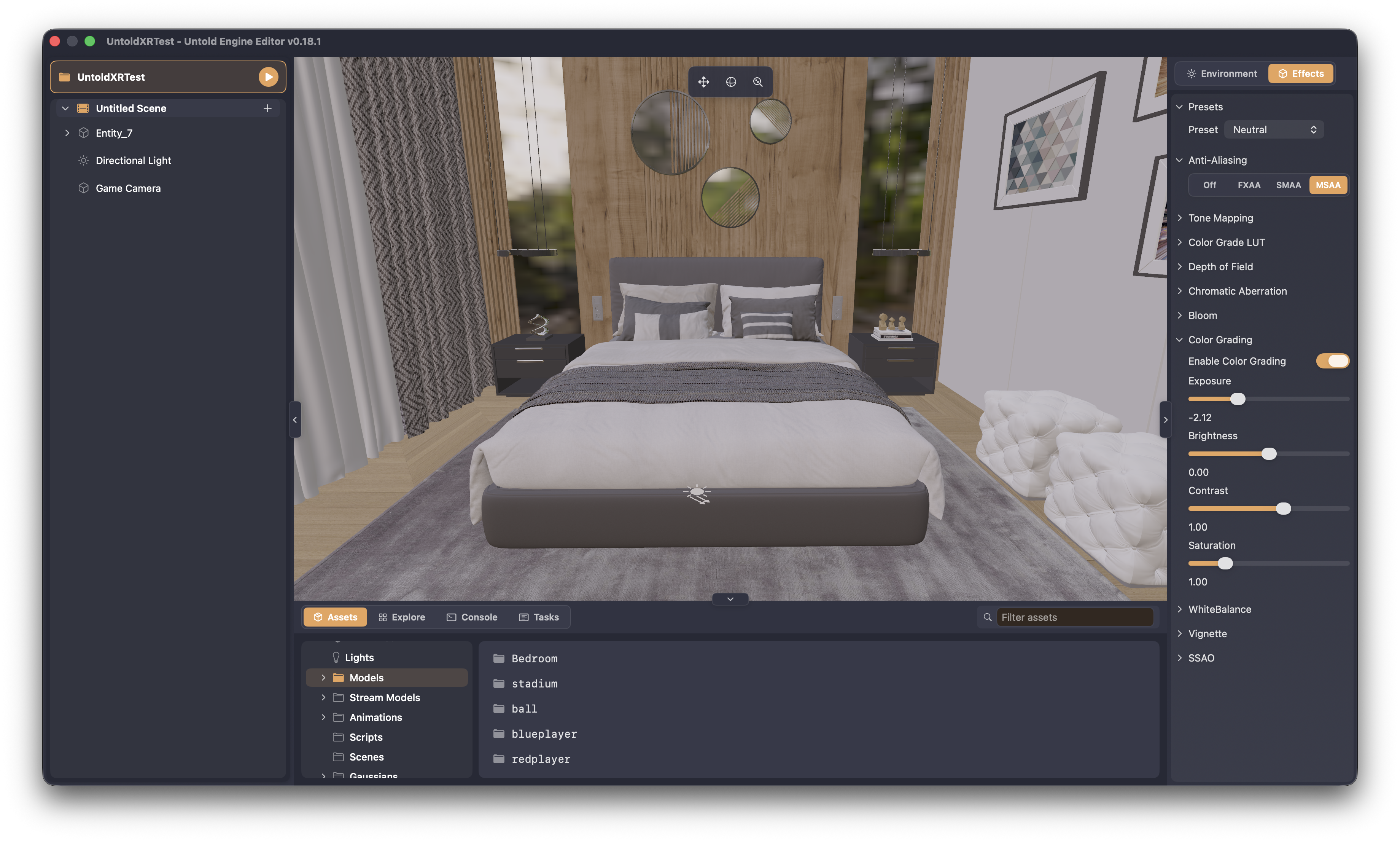
To load a scene authored with the Untold Editor, use loadUntoldScene(named:):
loadUntoldScene looks for myscene.untoldscene under your project's Scenes/
asset folder; the .untoldscene extension is optional and can be omitted, as
shown above.
Using Your Own Assets
Everything up to this point uses the Starter Pack. Eventually, you will want to
use your own 3D models. The sections that follow cover installing the exporter
tools, converting assets to the engine's .untold format, and streaming large
scenes.
Bootstrap Exporter Dependencies
Before exporting or optimizing assets, install the external tools the CLI
relies on — the astcenc texture compressor and the Pillow/lz4 Python
packages — in one step:
This downloads a pinned, checksum-verified astcenc release into
~/.untoldengine/tools and pip installs the Python packages. Nothing to
download by hand or wire up with environment variables. Re-running bootstrap
is a no-op once everything is installed; pass --force to reinstall. See
Optimizations for details.
Native Asset Format: .untold
Untold Engine uses .untold as its native runtime asset format. You author
assets in Blender (or any DCC tool that exports USD/USDZ), then convert them
to .untold before loading them in the engine. The exporter accepts either a
.blend file directly or a USD/USDZ asset.
The .untold format is a binary container optimised for fast runtime parsing with
no ModelIO dependency. It supports runtime mesh data, PBR materials, texture references,
transforms, bounds, and exported animation clips.
.untold assets can also carry scene-authored data from Blender, including
lights, cameras, and an optional baked color-management LUT. Mesh loading APIs
load geometry and materials; call loadSceneAuthored(...) when you want the
Blender-authored scene lighting, cameras, and color transform too. See
Load Blender-Authored Lights, Cameras, and Color Management
for the runtime pattern.
You can convert assets with either the Untold Engine Blender addon or the CLI.
Option 1: Blender add-on
To convert a USDZ file into the .untold format using the add-on, follow the directions in Using Blender Addon.
After the model has been converted to .untold format, copy it into your Xcode project under Sources/<ProjectName>/GameData/Models/<assetname>/.
Option 2: CLI
Use untoldengine export to convert a single asset — a .blend file or a USD/USDZ asset — into .untold:
untoldengine export \
  --input /path/to/your/model/robot/robot.blend \
  --output /path/to/your/project/GameData/Models/robot/robot.untold \
  --convert-orientation
USD/USDZ input works the same way:
untoldengine export \
  --input /path/to/your/model/robot/robot.usdz \
  --output /path/to/your/project/GameData/Models/robot/robot.untold \
  --convert-orientation
Add --optimize to also LZ4-compress geometry and, if the asset has textures,
compress them with astcenc into .utex — equivalent to running
--compress-geometry followed by untoldengine texbake --dir and
--patch-refs. Run untoldengine bootstrap once beforehand so the tools it
needs are available:
untoldengine export \
  --input /path/to/your/model/robot/robot.blend \
  --output /path/to/your/project/GameData/Models/robot/robot.untold \
  --convert-orientation \
  --optimize
For animation assets, use the --animation flag:
untoldengine export \
  --input /path/to/your/animation/robot/robot.usdz \
  --output /path/to/your/project/GameData/Animations/robot/robot.untoldanim \
  --convert-orientation \
  --animation
For large scenes that need tile-based streaming, use export-untold-tiles to
partition the scene and generate a manifest JSON:
./scripts/export-untold-tiles \
  --input /path/to/your/model/dungeon/dungeon.usdz \
  --output-dir /path/to/your/project/GameData/StreamModels/dungeon/tile_exports \
  --tile-size-x 25 \
  --tile-size-z 25 \
  --generate-hlod \
  --generate-lod
For the full list of options, validation flags, and expected output layout see Using The Exporter. For optional asset optimization workflows, see Optimizations.