City Streaming On Vision Pro
This learning path turns a large city scene into a Vision Pro app that streams nearby geometry in and out of memory as the user moves through the city.
The purpose is to show how Untold Engine handles scenes that are too large to load as one always-resident model:
- The starter streamed-city asset ships as a tiled manifest.
- The app loads
LowPolyCity.jsonwithsetEntityStreamScene. - Tile geometry streams based on camera distance.
- LOD and HLOD representations cover farther parts of the city.
- Static batching updates automatically as streamed geometry becomes resident.
- Spatial debug overlays and profiler stats show what the streaming system is doing.
By the end of the path, you will have a city-scale Vision Pro scene that loads incrementally instead of forcing the entire city into GPU memory at startup.
What You Will Build
The example scene is a simplified city district with:
- city blocks
- roads and sidewalks
- several buildings
- optional named landmarks
- a tiled streaming manifest
- Vision Pro spatial manipulation
- streaming debug overlays
- profiler output for residency and memory behavior
This path is the large-scene counterpart to the single-asset archviz path. Use setEntityMeshAsync for smaller assets that should stay resident. Use setEntityStreamScene when the scene is large enough that only nearby geometry should be loaded.
Want to run it right away instead of building it step by step? The finished project, CityStreaming, is in the UntoldArcade demo collection: github.com/untoldengine/UntoldArcade/tree/main/CityStreaming. Clone it, open the Xcode project, and run.
Create The Vision Pro Project
Create a standalone visionOS project:
cd ~/Projects
untoldengine create CityStreaming --platform visionos
open CityStreaming/CityStreaming.xcodeproj
Open:
Install The Starter Streamed City Asset
From the generated project folder, install the starter streamed-city asset pack:
The CLI finds the project's GameData folder and merges the asset files into it.
The important files for this path are the LowPolyCity.json manifest and its LowPolyCity/ tile folder, installed under:
The manifest name passed to the engine is "LowPolyCity" and the extension is "json":
setEntityStreamScene(entityId: cityRoot, manifest: "LowPolyCity", withExtension: "json") { success in
    setSceneReady(success)
}
Load The City Manifest
In init(), configure the engine and load the streamed scene under a stable root entity:
configureEngineSystems()
configureCityStreaming()

let cityRoot = createEntity()
setEntityName(entityId: cityRoot, name: "LowPolyCity")

setEntityStreamScene(entityId: cityRoot, manifest: "LowPolyCity", withExtension: "json") { success in
    setSceneReady(success)
}
A helper keeps the streaming setup isolated:
The engine already uses sensible default values for tile/mesh/LOD/HLOD concurrency, query radius, and candidate selection, so enabling streaming is enough to see tiles load and unload as you move through the scene. See Tune Streaming Behavior below once this is working and you want to adjust it.
setEntityStreamScene registers lightweight tile stub entities first. The engine then loads and unloads tile geometry as the camera moves.
Do not call generateBatches() for streamed tiles. The streaming path updates batching incrementally as tile, LOD, and HLOD representations become resident.
Configure XR Input And Rendering
Use the standard Vision Pro setup:
private func configureEngineSystems() {
    gameMode = true

    registerXREvents()
    setInput(.xr(.pickingBackend(.octreeGPUPreferred)))
    setInput(.xr(.twoHandRotateAxisMode(.dynamicSnapped)))
    setInput(.xr(.sceneReady(true)))

    setRendering(.postProcessing(.enabled))
    setRendering(.antiAliasing(.msaa))
    setPostFX(.ssao(.enabled(false)))

}
Move Through The City
For a Vision Pro city viewer, combine two locomotion modes: tap-to-teleport for large jumps across the city, and pinch-drag/two-hand rotate for fine positioning:
private let maxTeleportDistanceMeters: Float = 40.0

func handleInput() {
    guard gameMode, isSceneReady() else { return }

    let state = getXRSpatialInputState()

    // Tap a walkable surface to teleport there.
    if state.spatialTapActive,
       let hitPos = state.pickedEntityWorldPosition,
       let normal = state.pickedEntityWorldNormal,
       isWalkable(normal),
       isWithinTeleportRange(hitPos)
    {
        translateSceneBy(delta: simd_float3(-hitPos.x, 0, -hitPos.z))
    }

    // Pinch + drag to move the scene root; two-hand pinch to rotate it.
    SpatialManipulationSystem.shared.processAnchoredSceneManipulationLifecycle(
        from: state,
        dragSensitivity: 10.0,
        rotateSensitivity: 1.0
    )
}

private func isWalkable(_ normal: simd_float3) -> Bool {
    let slope = acos(simd_clamp(simd_dot(simd_normalize(normal), simd_float3(0, 1, 0)), -1, 1))
    return slope <= (.pi / 6) // ~30°, rejects building facades/walls
}

private func isWithinTeleportRange(_ hitPos: simd_float3) -> Bool {
    simd_length(simd_float3(hitPos.x, 0, hitPos.z)) <= maxTeleportDistanceMeters
}
Teleport and drag/rotate can be used together: tap a spot on the road or sidewalk to jump there instantly, or pinch-hold and move your hand to pan and rotate the city for finer adjustments. As the camera moves relative to the city — whether from a teleport jump or a drag — the streaming system updates tile residency.
isWalkable rejects hits whose surface normal points more than ~30° away from world up, so taps on building facades or steep walls are ignored. isWithinTeleportRange caps how far a single tap can jump; keep maxTeleportDistanceMeters at or below your manifest's queryRadius (see Tune Streaming Behavior) so a teleport destination is guaranteed to already be inside the streaming system's load range.
For a desktop-style debug build, you can also use free-fly camera movement as shown in the Large Scene Streaming Demo.
Tune Streaming Behavior
Once the default streamed scene is working, adjust concurrency inside configureCityStreaming():
setGeometryStreaming(.tileConcurrency(2))
setGeometryStreaming(.meshConcurrency(3))
setGeometryStreaming(.lodConcurrency(4))
setGeometryStreaming(.hlodConcurrency(4))
Configure candidate selection:
setGeometryStreaming(.queryRadius(120.0))
setGeometryStreaming(.frustumGate(.enabled(
    meshPadding: 6.0,
    tilePadding: 8.0
)))
setGeometryStreaming(.velocityLookAhead(time: 0.5, minSpeed: 1.5))
setGeometryStreaming(.candidateSorting(importance: true, occlusion: true))
These calls do not load content by themselves. They configure how the streaming system behaves after a manifest-backed scene is registered.
Use a queryRadius large enough to cover the farthest unload_radius in the manifest. If the query radius is too small, out-of-range tiles may not be discovered for unloading.
Add Spatial Debug Overlays
Tile bounds are the first overlay to enable when validating a manifest:
Use octree residency coloring when diagnosing streaming behavior:
setSpatialDebug(.octreeLeafBounds(.enabled(
    maxLeafNodeCount: 0,
    occupiedOnly: true,
    colorMode: .residency
)))
Use LOD and texture-tier overlays when tuning representation quality:
These overlays help answer practical questions:
- Are tile bounds where you expected them?
- Are nearby tiles resident?
- Are distant tiles using LOD or HLOD representations?
- Are textures dropping to lower tiers under memory pressure?
Disable overlays before judging final visual quality.
Inspect Streaming Stats
Log high-level streaming state during development:
For a fuller snapshot:
Useful fields:
| Field | Meaning |
|---|---|
loadedCount |
Streaming entities and tiles currently resident. |
loadingCount |
Entities and tiles currently loading. |
unloadedCount |
Entities and tiles not resident. |
activeLoads |
Async loads currently in flight. |
loadCandidates |
Nearby candidates eligible this update. |
pendingLoadBacklog |
Candidates waiting because slots are full. |
If pendingLoadBacklog stays high, the scene may be slot-starved. Lower tile size, tune manifest radii, or adjust concurrency after testing on device.
Enable Profiler Output
The engine profiler gives better long-running visibility than ad hoc logs:
setEngine(.metrics(.enabled))
setEngineStatsLogging(
    enabled: true,
    profile: .verbose,
    intervalSeconds: 1.0
)
Watch these lines:
Streamingfor residency counts, active loads, candidates, backlog, and upload gate cost.TileRepsfor full / LOD / HLOD representation residency and overlap.TileRenderCostfor draw and triangle cost by representation tier.Memoryfor mesh and texture budget pressure.
If the profiler shows frequent memory pressure, reduce tile size, reduce texture size, lower concurrency, or use stronger LOD/HLOD coverage.
Remote City Streaming
Once local streaming works, the same API can load a remote manifest:
let cityRoot = createEntity()
setEntityName(entityId: cityRoot, name: "RemoteCity")

if let url = URL(string: "https://cdn.example.com/City/City.json") {
    setEntityStreamScene(entityId: cityRoot, url: url) { success in
        setSceneReady(success)
    }
}
Remote manifests are downloaded and cached locally. Tile, LOD, HLOD, and texture URLs are resolved relative to the manifest URL and fetched on demand.
Use local manifests first. Move to remote streaming only after the manifest, tile bounds, LODs, and memory behavior are correct.
Switching Cities Or Sessions
If your app switches from one streamed scene to another, clear parsed tile memory before starting the new streaming session:
Then create a new root and call setEntityStreamScene for the next manifest.
Do not call forceUnloadAllParsedTiles() during normal camera movement. Distance-based unload handles ordinary traversal.
What This Learning Path Demonstrates
The city scene works because the engine treats the city as a streamed world instead of one giant mesh:
LowPolyCity.jsondescribes spatial tiles.- Tile stubs register quickly.
- Nearby tiles load asynchronously.
- Farther tiles use LOD or HLOD representations.
- Tiles unload when they leave range.
- Texture quality can adapt with distance and memory pressure.
- Batching updates as streamed geometry becomes resident.
- Profiler and spatial debug overlays show the runtime behavior.
This is the foundation for larger spatial visualization apps: city models, campuses, infrastructure, industrial sites, and large real-world scans.
Replace The Starter Asset With Your Own City Scene
Once the starter streamed-city asset works, the next step is to export your own tiled city scene.
Start with a city model that is organized into meaningful areas. The scene does not need to be huge for the first pass. A few blocks are enough to validate the workflow.
Example source structure:
Road_Main
Road_Second
Sidewalk_North
Sidewalk_South
Block_A
Block_B
Block_C
Building_A_01
Building_A_02
Building_B_01
Building_C_01
Use NM_ only for landmarks or objects that must remain individually selectable:
For most city geometry, avoid thousands of tiny independent objects. Merge or organize small details where possible before export. The tiled pipeline is designed for large spatial regions, not for treating every bolt, sign, or curb segment as a unique gameplay object.
Export the city with the Blender Add-On Workflow which allows you to set the partitioning, streaming radius, unload radius, etc., as shown below.
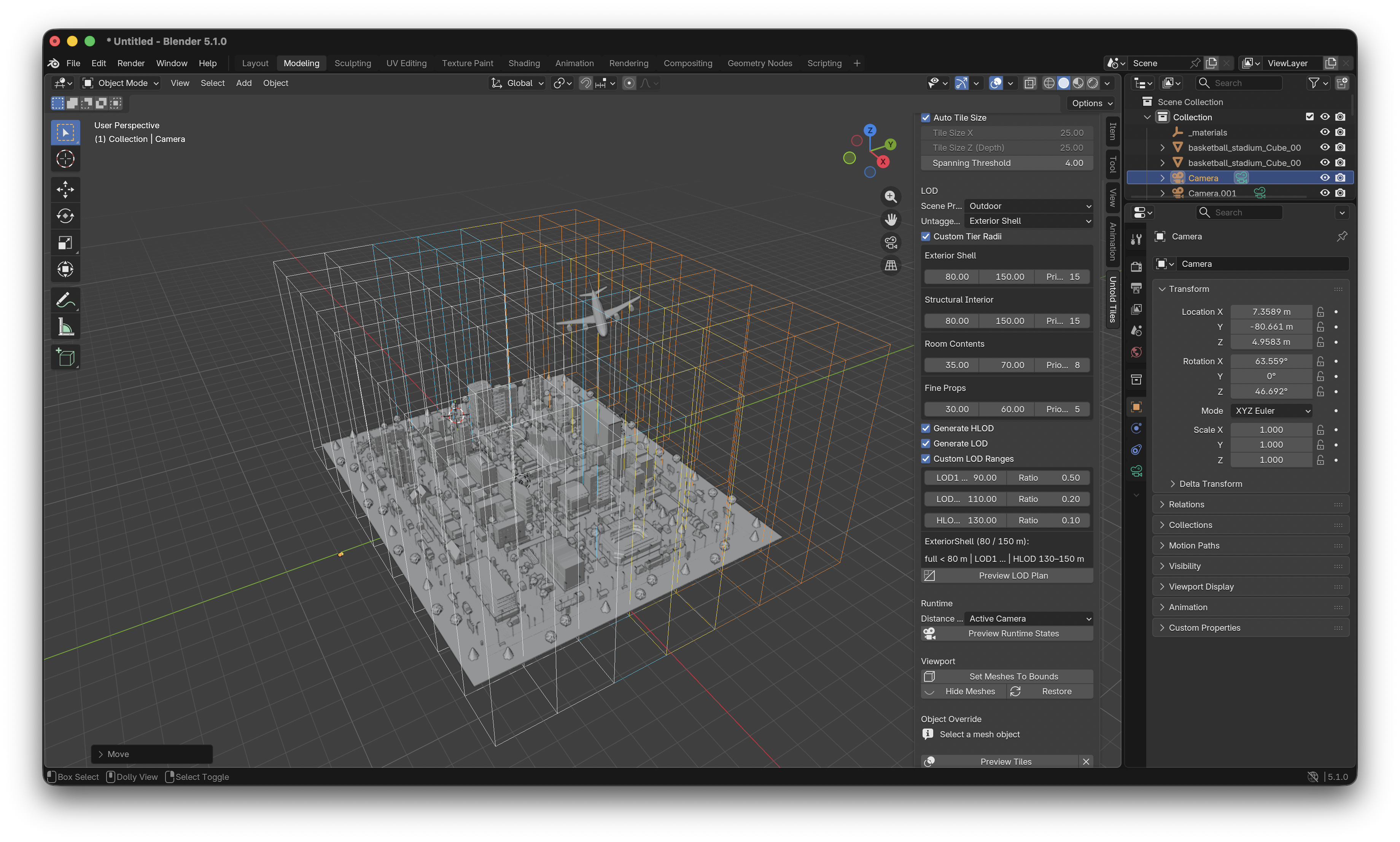
The output should look like this, with the tile folder named after the manifest:
City.json is the manifest. It describes the tile bounds, streaming radii, optional per-tile LODs, optional HLODs, and tile payload files.
City/ contains the tile assets that the engine loads on demand.
Important manifest concepts:
| Field | Purpose |
|---|---|
streaming_radius |
Distance where a tile's full representation should become visible. |
unload_radius |
Distance where the tile can be unloaded. |
prefetch_radius |
Distance where background parsing can begin before the tile is needed. |
lod_levels |
Intermediate per-tile representations. |
hlod_levels |
Coarse far-distance representations. |
Place City.json and the City/ tile folder under the project's GameData/StreamModels, then update the filename passed to setEntityStreamScene:
setEntityStreamScene(entityId: cityRoot, manifest: "City", withExtension: "json") { success in
    setSceneReady(success)
}
For a CLI-based export, see Export Assets With The CLI.