Getting Started Making Games — Editor
This guide takes you from nothing installed to a running app with a cube you can move in code, using only the Untold Editor — no command line required.
Prefer the terminal, or want to script project creation? See Getting Started Making Games — CLI instead. The
untoldengineCLI is still there if you want it later — the Editor's Create Project dialog wraps the same project generator.New to the Editor's panels and viewport controls? See Getting Started With the Editor for a tour before diving into project creation.
Requirements
- macOS 26 or newer
- Swift 6 / Xcode 26 or newer
- Apple Silicon Mac
- Supported platforms: macOS, iOS, and visionOS
1. Download the Editor
Grab the latest build from the Untold Editor Releases page and launch it.
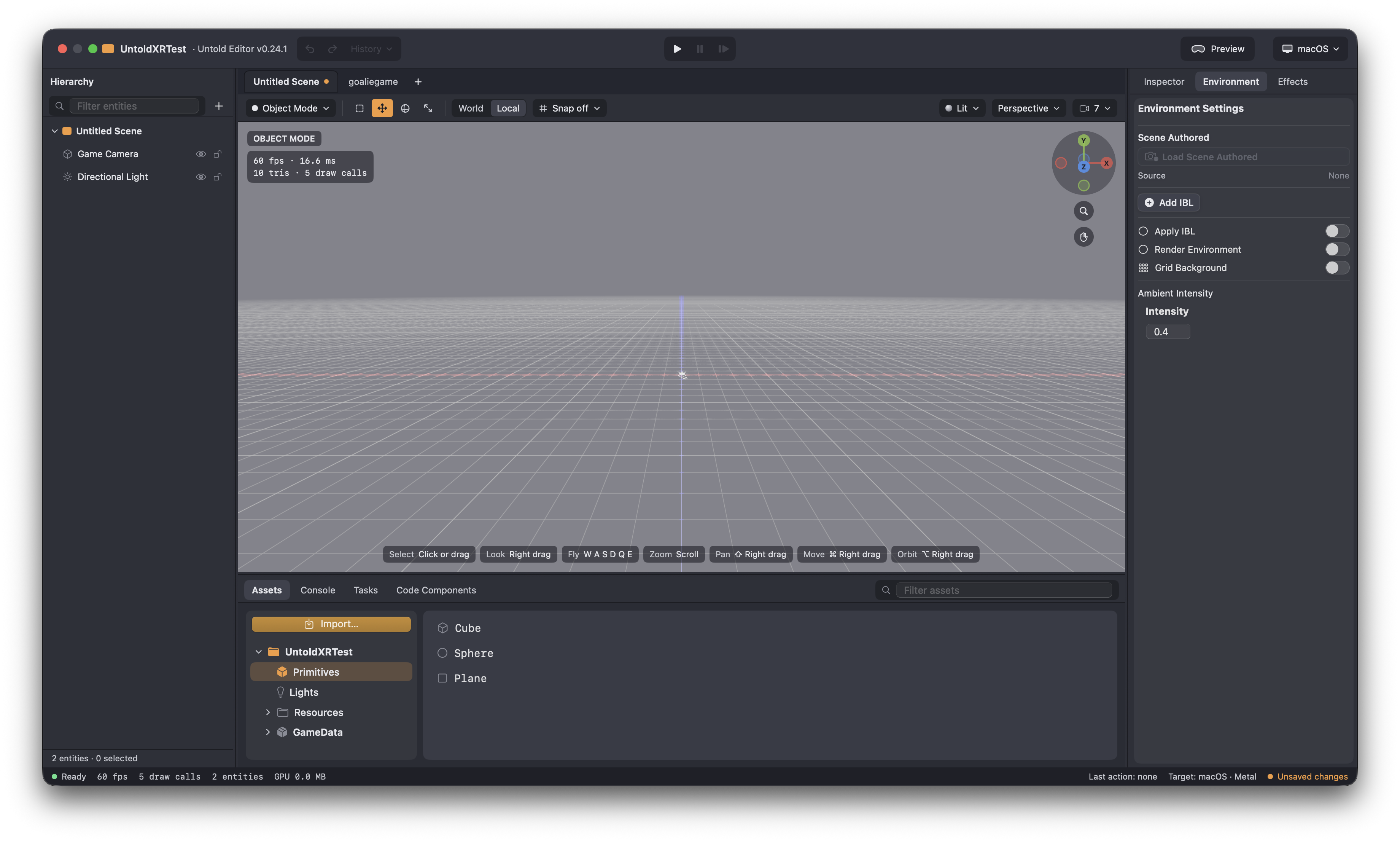
2. Create a project
From the Editor, choose Create New Project and fill in:
- Project Name — e.g.
MyGame - Bundle Identifier — e.g.
com.yourcompany.mygame - Target Platform — macOS, iOS, iOS AR, visionOS, or Multi-Platform. Pick visionOS if you plan to continue into Building Your First Vision Pro Scene next.
- Output — where the project folder is written
Click Create. The Editor generates an Xcode project with its own
Package.swift depending on Untold Engine, a GameData/ asset folder, and a
starter Sources/MyGame/GameScene.swift — then opens it as the active
project in the Editor so you can start placing entities right away.
3. Place a cube
In the Asset Browser's Primitives shelf, double-click (or drag) the Cube
primitive into the viewport. Select it, and in the Inspector rename it to
Cube so your code can find it later.
Save the scene with Cmd+S, naming it MyScene. This writes
GameData/Scenes/MyScene.untoldscene.
4. Reference the cube and move it in code
Open MyGame.xcodeproj and edit Sources/MyGame/GameScene.swift. Load the
scene you saved, look up the entity you named, and move it each frame:
// In init(), after configureEngineSystems()
loadUntoldScene(named: "MyScene") { success in
    guard success else { return }
    if let cube = findEntity(name: "Cube") {
        // Move it 5 units out in front, once, at load time
        translateBy(entityId: cube, position: simd_float3(0, 0, -5))
    }
    setSceneReady(success)
}

// In your per-frame update
func update(deltaTime: Float) {
    guard isSceneReady(), let cube = findEntity(name: "Cube") else { return }
    // Spin it in place at 90°/sec
    rotateBy(entityId: cube, angle: 90 * deltaTime, axis: simd_float3(0, 1, 0))
}
findEntity(name:) resolves the name you gave the cube in the Inspector
back into an EntityID you can drive with the
Transform System — translateBy,
translateTo, rotateBy, rotateTo, and so on.
5. Run it
Press Run in Xcode. You should see the cube sitting 5 units out in front, spinning in place.
Where to go next
- Building Your First Vision Pro Scene — loading your
own
.untoldassets, streamed scenes, and remote manifests - Tutorials — lighting, rendering quality, exporter workflows, XR input
- Using the Untold Engine CLI — if you later want to script project creation, export assets, or install asset packs from the terminal
If your team is evaluating Untold Engine and needs an engine capability that is not currently available, see Commercial Use, Sponsored Features, and Support.